BetterReads Blog
Smarter Annotations: Glossary Lookup, Visual Explain, and Instant Recall
By Zhao Lu ·
Reading slows down for two familiar reasons: a word you do not know, and an image you cannot see in your head.
BetterReads already let you mark a passage with a semantic label—Character, Theme, Glossary, and the rest—and save Explain answers as notes tied to the text. Those ideas are in Structured Annotation for Deep Reading and Stay With the Text: Explain, Ask Follow-Ups, and Save What You Learn.
This post is about what changed recently: less friction when you look something up, pictures when words are not enough, and your saved notes coming back when you need them. All three work in the web reader and the BetterReads app (iOS and Android)—same annotations, synced when you sign in.
Glossary: select a word, get a definition
When you highlight a passage and choose Glossary, BetterReads does not leave you with an empty note field.
It looks up the selected term automatically—using the book’s language when it can, and falling back to Wiktionary (and related dictionary sources) for definitions in English, French, German, Spanish, Italian, Portuguese, Russian, Dutch, Polish, Swedish, and other supported editions.
You still edit or replace the definition if you want your own wording. The point is to remove the copy-paste loop: select → label → already have something useful on the page.
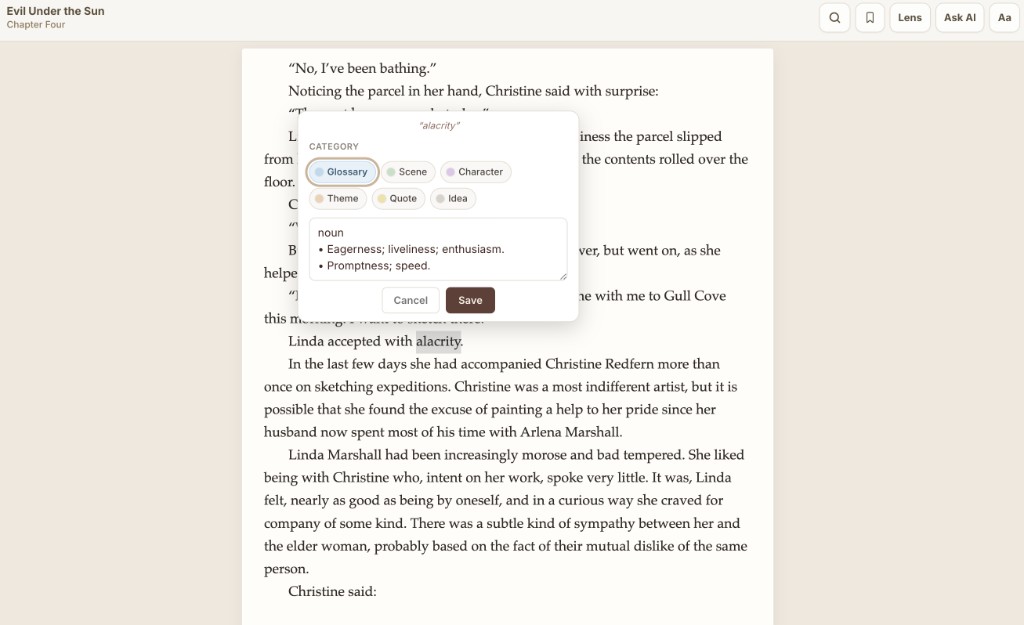
This fits the same habit as the category guide in Semantic Annotation: When to Use Each Category: Glossary is for the unfamiliar word or phrase; the app now helps you fill in what it means while you are still in the sentence.
Explain can return an image—and save it with the note
Some questions are visual. What does a Chinese hat look like? What are laced espadrilles? A paragraph of prose helps; a picture helps more.
When Ask AI detects that kind of question, it can attach a reference image to the answer (sourced from Wikimedia with attribution). If you tap Save to Notes, the image is stored inside the annotation, synced with the highlight like the text of the answer.
In Evil Under the Sun, a line about Arlena’s “green Chinese hat” becomes clearer when you can see the wide conical straw shape the text assumes you already know.
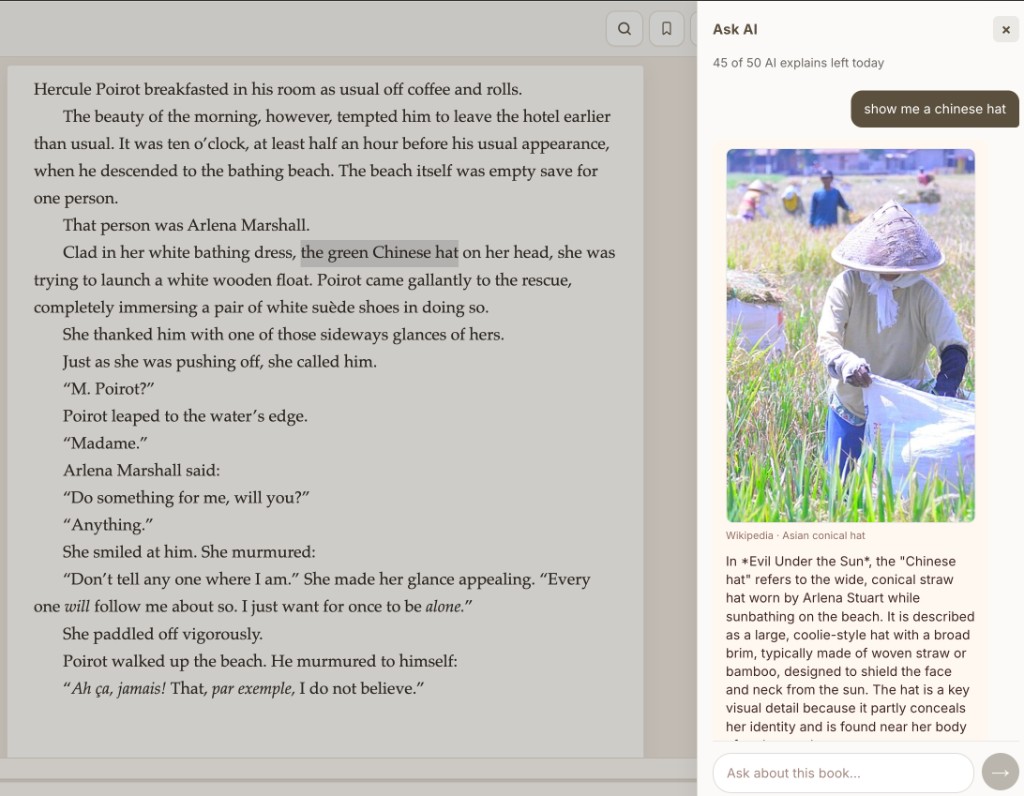
Images are optional. Plain-language answers work exactly as before. The reader only gets a figure when the question genuinely benefits from one.
Hover saved glossary and AI notes in the margin
Saved Glossary entries and Explain notes are only useful if you can read them again without hunting through a separate list.
On web, point at a highlighted passage that carries a glossary definition or a saved Explain answer. A compact popup opens over the text: the label (Glossary or AI Q&A), the term or question, the definition or answer, and any saved image.
On mobile, tap the highlight for the same popup—no separate notes screen required.
Below, a saved note on laced espadrilles shows the original question, a short explanation tied to the beach setting, and the reference photo—without leaving the chapter.
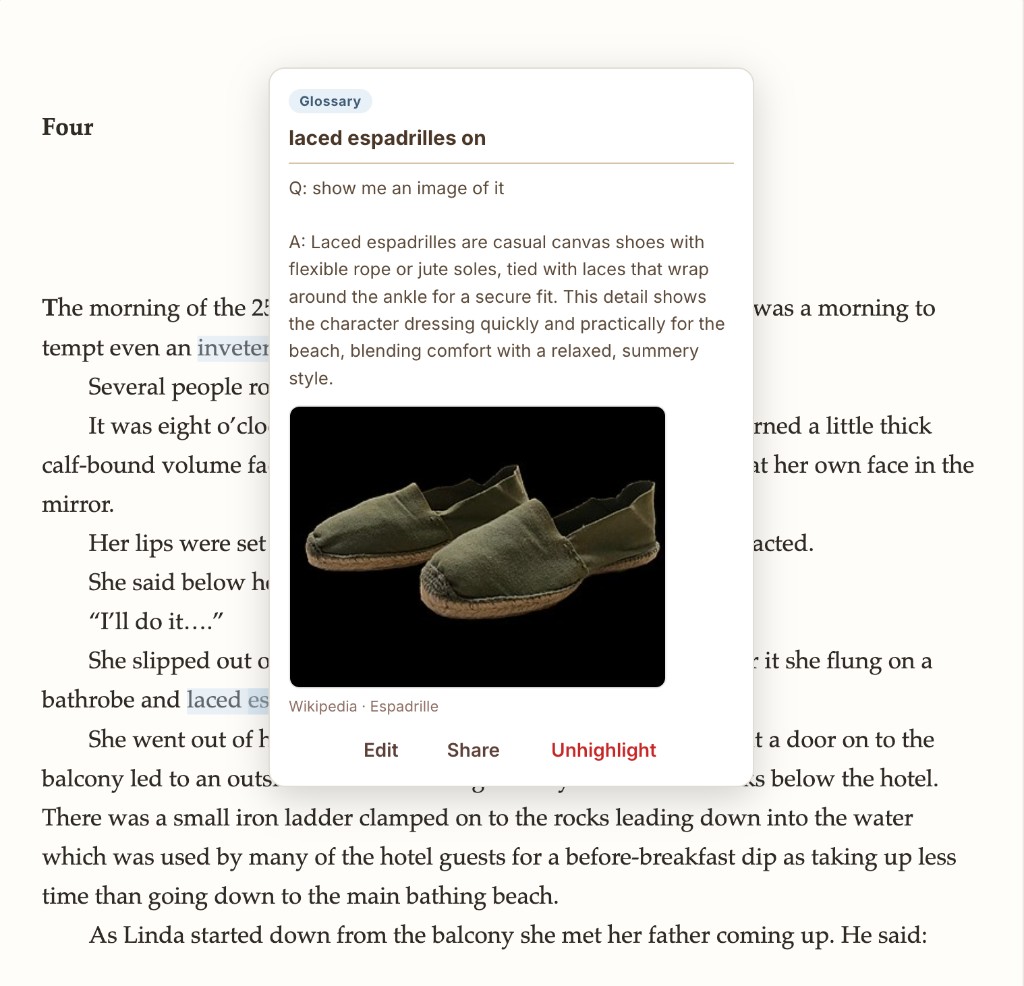
Glossary lookup, visual Explain, and saved-note popups behave the same on phone, tablet, and desktop. Start on one device, continue on another—your highlights and notes follow when you are signed in.
How the three pieces fit together
Unknown word — Annotate as Glossary → definition looked up in the right language.
Confusing or visual passage — Explain, ask a follow-up if you need one → text answer, plus an image when it helps.
Return visit to an old chapter — Hover or tap the highlight → popup with definition, Q&A, and any saved image.
All of it stays anchored to the passage. That is the through-line of BetterReads annotation: not a pile of highlights, but structured memory attached to the book.
Try it on your next difficult chapter
Pick a book where the language or references slow you down—on betterreads.online or in the app. Mark one Glossary term, run Explain on one stubborn paragraph (try a question that asks what something looks like if you want to see the image path), save the answer, and scroll back to the highlight.
If you are new to semantic labels, start with Structured Annotation. If Explain is new to you, Stay With the Text walks through the full Q&A flow.
We built these updates so looking something up feels like part of reading—not a detour out of it.
Get BetterReads on your phone
Your bookshelf, highlights, and reading tools are in the iOS and Android apps—the same experience as the web reader, synced when you sign in.
Or continue in the browser at betterreads.online.