BetterReads Blog
A PDF Reader for Research, Not Just Reading
By BetterReads ·
A PDF is rarely just a document you read from the first page to the last. It is usually a small research environment: an argument to navigate, references to follow, figures to inspect, and passages to collect before they disappear into a folder.
BetterReads treats a PDF as a book you can work inside. The web PDF reader keeps the page central while putting the tools around it: Contents on the left, Notes on the right, and the reading surface between them.
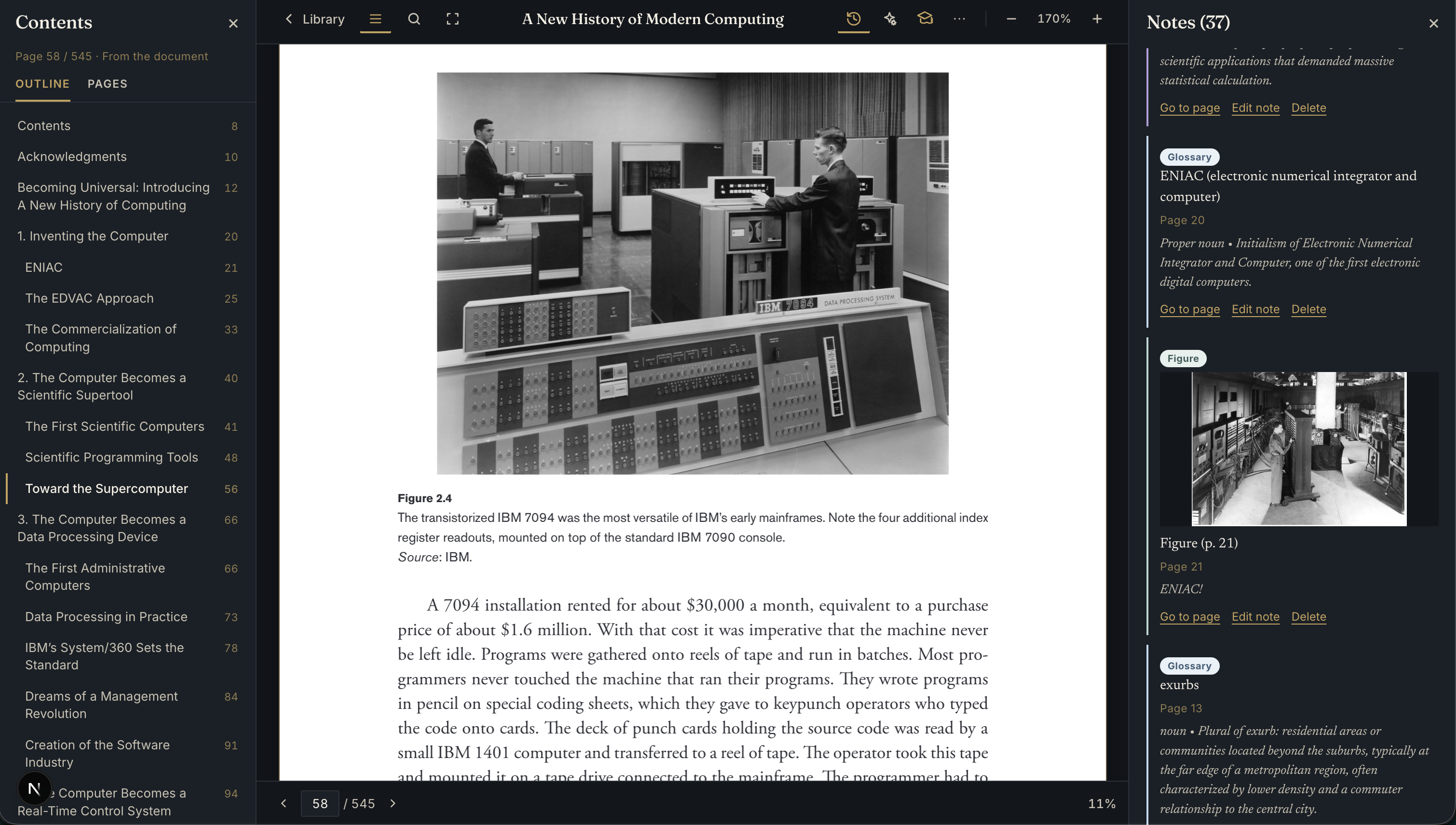
Find your place in a long PDF
The Contents panel gives a research document a navigable shape. When a PDF includes bookmarks, BetterReads uses them as an outline. When it does not, the reader can infer headings from the page text, so a long document is not reduced to a strip of thumbnails.
The Pages tab provides lazy thumbnails and marks pages that already contain notes. The reader also remembers the last page and zoom level for each PDF. Reopening a paper means returning to the place where your thinking stopped, at the size you chose for reading it.
Follow the argument's links
Research reading is full of small jumps: a citation in the middle of a paragraph, a footnote at the bottom of a page, a named section somewhere else in the document. In the web reader, internal PDF links can take you to the destination page and the relevant position on that page, rather than leaving you at the page top.
When a paper has a broken citation link, the reader can fall back to searching the references for the cited author and year. A return action takes you back through the jump stack, so following a reference does not mean losing the paragraph you were reading.
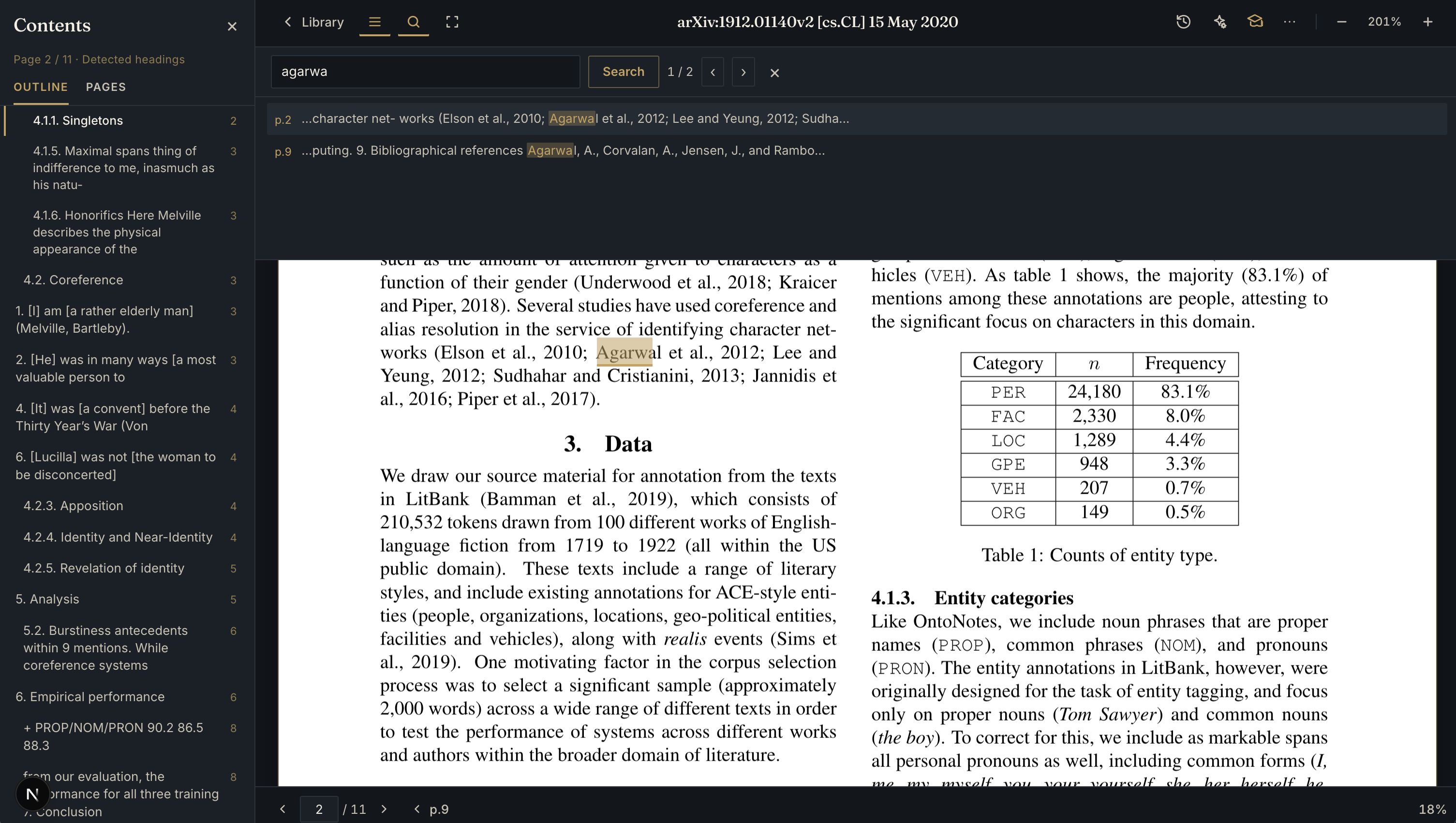
In this example, searching for Agarwal surfaces both the citation in the paper and the matching reference. After following the jump, the bottom navigation keeps a return target visible, so the original reading position is not lost.
Search that lands on the text
Find-in-page searches the PDF text, paints the matches on the page, and lists snippets you can use to move between hits. This is useful when you remember a term but not its page, or when you want to trace how a paper uses a concept across sections.
The result is a tighter loop: search for a phrase, land on the line, select the passage, and decide what to keep.
Give a passage a job
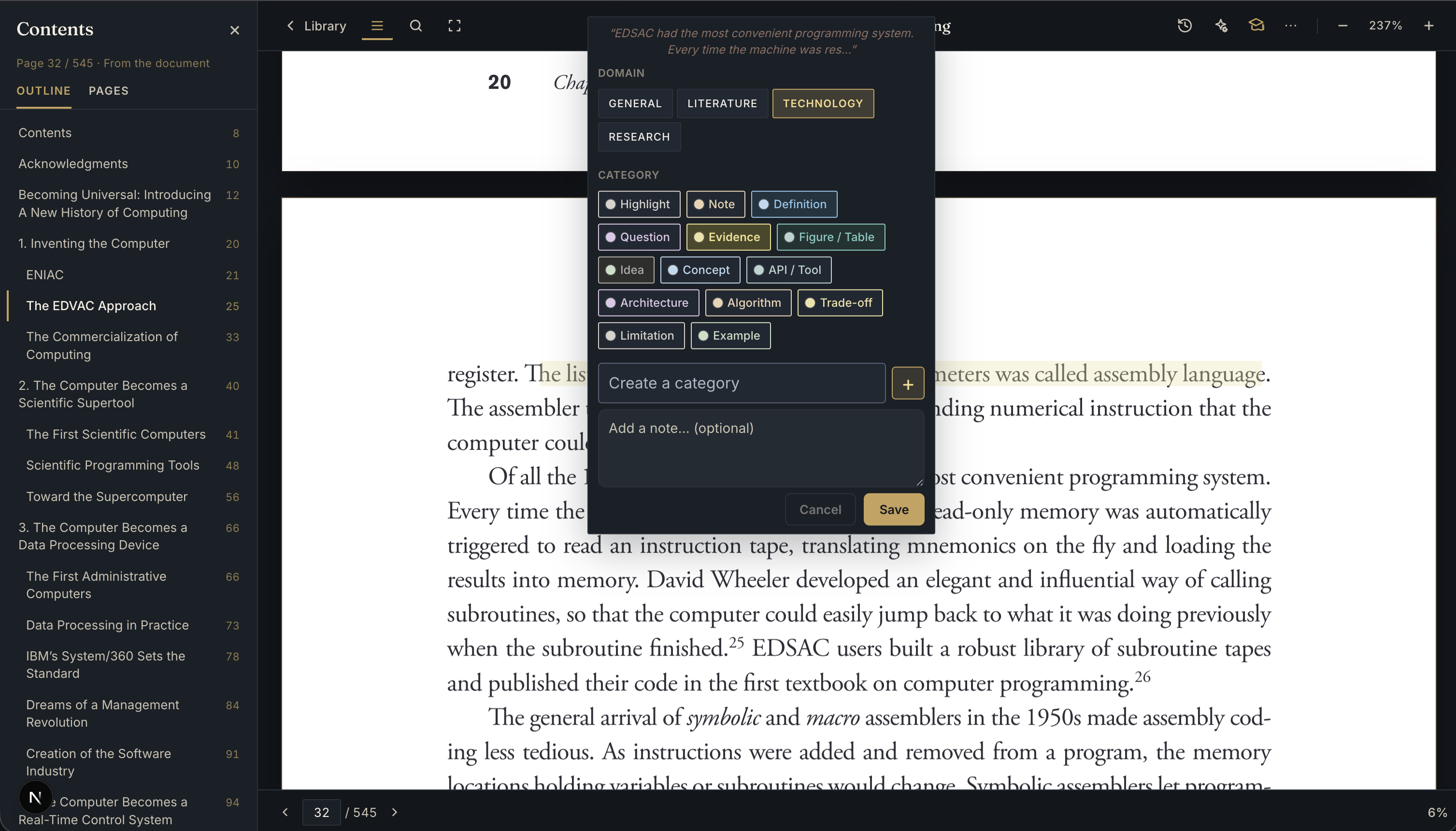
The selection bar supports more than a generic highlight. You can look up a term, ask for an explanation, copy or share the selection, add a note, or apply a semantic annotation such as Glossary, Concept, Evidence, Figure, Theme, or Idea.
Semantic categories are useful because research notes are easier to revisit when they say what a passage is doing. A definition is not the same as evidence. A figure is not the same as a conclusion. The category becomes a small piece of structure that travels with the highlight.
For more flexible annotation, you can also choose a domain and create custom categories. A technology paper might need API / Tool, Architecture, or Trade-off. A study project might need Claim, Method, or Open Question. The vocabulary can follow the work instead of forcing every PDF into the same note system.
Keep notes beside the source
Saved notes appear in the Notes panel with filters for kind, category, and search. From there, you can jump back to the page, edit or delete a note, and separate bookmarks from highlights or other annotation types.
This matters because the useful unit of research is not the isolated note. It is the note plus the exact passage and page that gave it meaning. BetterReads keeps that relationship visible.
Capture a figure, not just its caption
When a figure, table, diagram, or selected area matters, you can capture the region directly from the page. The capture is saved with the note as a figure annotation, so the visual evidence stays connected to the PDF instead of becoming an unnamed image in another folder.
It is a simple action, but it changes what can be kept. Sometimes the important part of a paper is not a sentence; it is the shape of a chart or the relationship shown in a diagram.
Ask questions that stay on the page
Select a passage and pin it to Ask AI, or use Explain on the selection. The reader builds context from the relevant page, nearby pages, matching terms, and, when useful, the bibliography. Answers cite page numbers, and those citations can take you back to the source location.
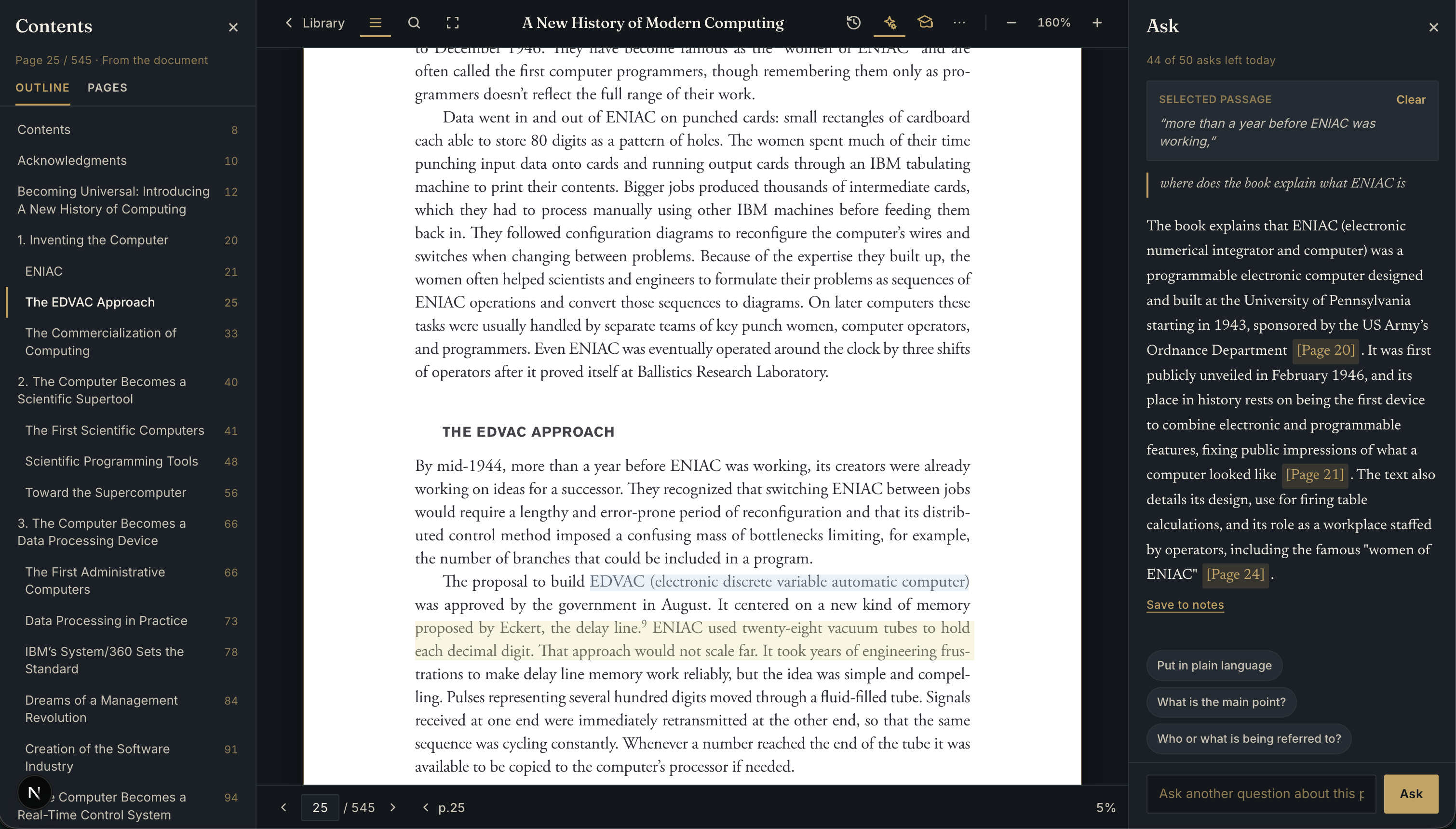
That grounding is the point. The answer should help you read the paper, not replace it with a floating summary. A follow-up question stays attached to the selected passage, so the conversation retains the context that made the question worth asking.
From reading to review
Annotations do not have to end when the PDF closes. Saved highlights, notes, glossary entries, and semantic annotations can be revisited in Study. A research session can therefore have a second pass: first collect the evidence, then return to it later and test what you still remember.
The web PDF reader is designed for that longer cycle:
- Find the section, passage, or figure you need.
- Follow citations and footnotes without losing your place.
- Save the parts that deserve another look.
- Filter and revisit them by note type or category.
- Use Study to turn reading into recall.
BetterReads is not trying to become a document editor, a reference manager, or a full library of cited papers. It is a reading surface for understanding a PDF as evidence: navigate it, question it, mark it, and return to what mattered.
See also: Why Semantic Annotation Needs a Domain — how domain presets and custom categories shape the way you mark technical and research reading.
Get BetterReads on your device
Your bookshelf, highlights, and reading tools are in the iOS and Android apps—the same experience as the web reader, synced when you sign in.